> ## Documentation Index
> Fetch the complete documentation index at: https://docs.hel.io/llms.txt
> Use this file to discover all available pages before exploring further.
# Discord Memberships
> Include access to your exclusive community with every sale
Use the MoonPay Commerce Discord bot to include & assign roles/memberships to your exclusive community with every Helio sale (i.e. receive payment -> assign role). Roles are also auto-removed when subscriptions expire if you use [subscriptions](/docs/subscriptions#/).
# Enable Developer Mode
Before proceeding, please enable developer mode for Discord. This will allow you to see the server, role and user IDs required to setup the Discord bot. See [this Discord article on how to achieve this](https://support.discord.com/hc/en-us/articles/206346498-Where-can-I-find-my-User-Server-Message-ID) .
# Channel & Role Setup
Log in to the [dashboard](https://app.hel.io/dashboard), select **"Settings" -> "Integrations"**.
Hit **"Authenticate"** to allow the MoonPay Commerce bot to be installed via Discord. This authentication will use your Discord administrator credentials in your default browser to approve the installation of the bot for the required server as follows:
 Head back to Settings in the dashboard and you will notice the Discord section has changed to allow you to enter the relevant IDs. Choose your Server ID and one or more Role IDs and hit "Save Settings".
 # Finalise Discord Setup
Return to **"Server Settings" -> "Roles"** and you should now see the **"MoonPay Commerce"** role appear:
# Finalise Discord Setup
Return to **"Server Settings" -> "Roles"** and you should now see the **"MoonPay Commerce"** role appear:
 Select **"MoonPay Commerce"** to see the following. This is the bot role and should NOT be changed. Note that you can remove the bot in **"Server Settings" -> "Integrations"** if required.
 You MUST move the MoonPay Commerce bot above the roles that you want to assign due to Discord's role hierarchy logic. Drag the MoonPay Commerce role up above the "MoonPay Commerce Access" group as follows.
 # Create a payment & assign the role members
* Click **CREATE PAYMENT** to set up your payment details and pricing options. Select a single payment for one-time access or a [subscription](/docs/subscriptions#/) access (the role will be removed at the end of the subscription period).
* Under **Advanced options -> Discord memberships**, load and select the roles you wish to assign. Users must sign in with Discord on the Pay Link. To make Discord optional, untick the **"require Discord login"** box, allowing it as an optional field.
# Create a payment & assign the role members
* Click **CREATE PAYMENT** to set up your payment details and pricing options. Select a single payment for one-time access or a [subscription](/docs/subscriptions#/) access (the role will be removed at the end of the subscription period).
* Under **Advanced options -> Discord memberships**, load and select the roles you wish to assign. Users must sign in with Discord on the Pay Link. To make Discord optional, untick the **"require Discord login"** box, allowing it as an optional field.
 # Membership Assigned Real-Time or Claimed Afterwards
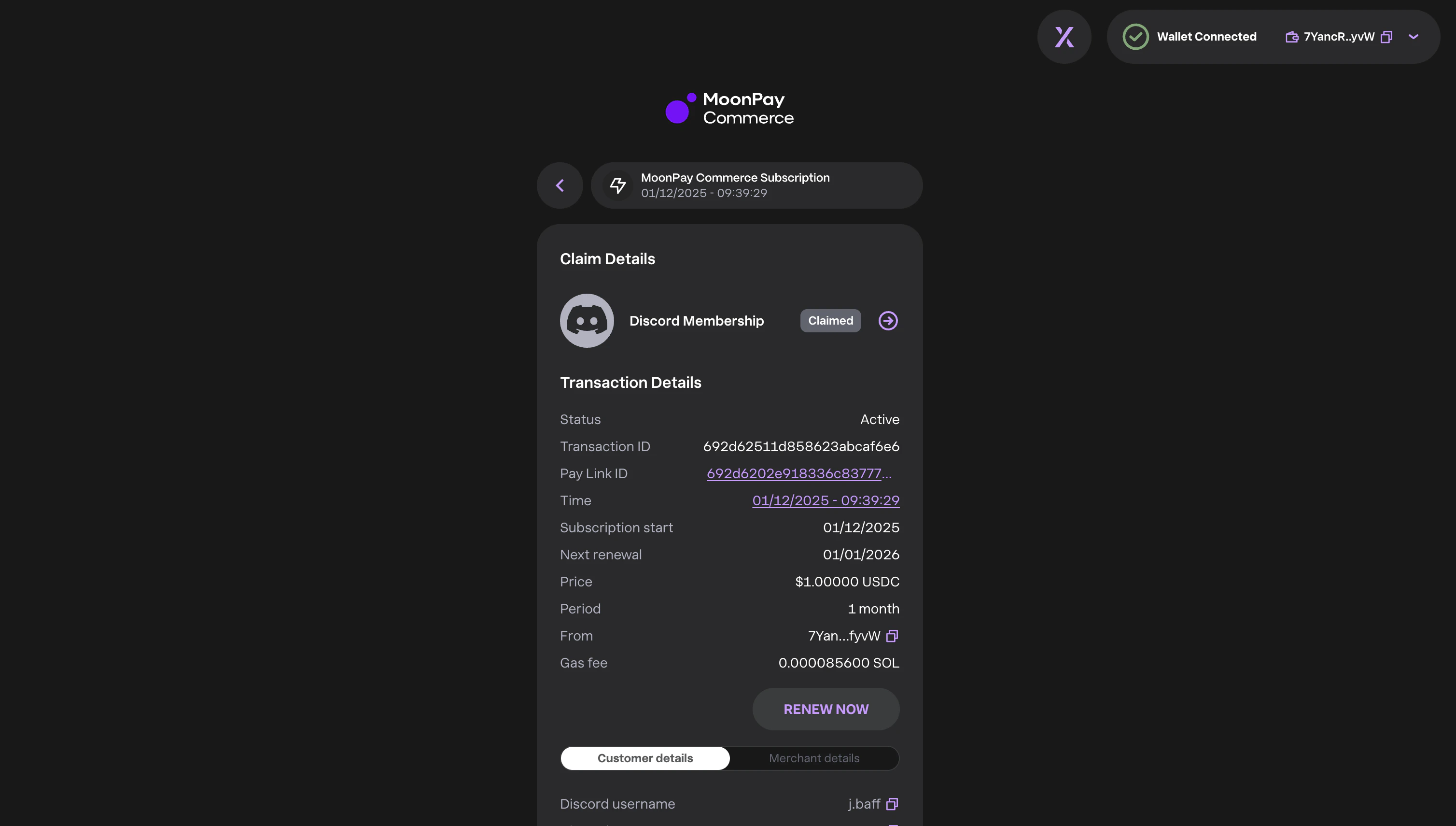
Roles can be assigned in real-time or claimed later. Share the Pay Link anywhere. Buyers automatically receive the role if they’re in your server; otherwise, they can join and claim it later from the [MoonPay Commerce Buyer Dashboard](https://app.hel.io/dashboard?userType=BUYER). They'll receive email reminders to claim (untick "E-mail address" if you prefer not to collect or remind buyers). For subscriptions, claims remain valid until the subscription ends.
# Membership Assigned Real-Time or Claimed Afterwards
Roles can be assigned in real-time or claimed later. Share the Pay Link anywhere. Buyers automatically receive the role if they’re in your server; otherwise, they can join and claim it later from the [MoonPay Commerce Buyer Dashboard](https://app.hel.io/dashboard?userType=BUYER). They'll receive email reminders to claim (untick "E-mail address" if you prefer not to collect or remind buyers). For subscriptions, claims remain valid until the subscription ends.