> ## Documentation Index
> Fetch the complete documentation index at: https://docs.hel.io/llms.txt
> Use this file to discover all available pages before exploring further.
# Team Roles
> Invite collaborators to your MoonPay Commerce account and operate efficiently as a team
Currently there are four roles: **Account Owner**, **Admin**, **Collaborator**, and **Dev**.
# Roles
MoonPay Commerce offers four roles. **Admin**, **Collaborator**, and **Dev** are invitable team roles (invited from **Settings → Team**).
**Account owner:**
* **Role Assignment:** Automatically assigned to the account creator.
* **Permissions:** Full access to all MoonPay Commerce features
**Admin:**
* **Role Assignment:** Invited by company account owner
* **Permissions:** Full access to all MoonPay Commerce features, except the ability to delete connected wallets
**Collaborator:**
* **Role Assignment:** Invited by an admin
* **Permissions:**
* View team transactions.
* Create and edit Pay Links on behalf of the team.
* Limited to using wallets linked by the Admin.
* Cannot access settings, add or change payout wallets, configure split payments, or process refunds.
**Dev:**
* **Role Assignment:** Invited by an admin.
* **Purpose:** Integrate and debug on behalf of the team without changing membership, merchant or account profile data, integration configuration, payout wallet structure, or rotating production API secrets.
* **Permissions:**
* View team members and switch between assigned teams.
* Access Developer settings and configure webhooks.
* View and copy API keys and payout wallet addresses.
* Read-only access to merchant profile, integrations, and account settings.
* Cannot invite or remove team members.
* Cannot add, edit, or delete payout wallets.
* Cannot regenerate API keys or modify production credentials.
* Cannot access HelioX.
# Managing Team Members
To manage team roles and add team members:
* **View the team:** Go to **Settings → Team**.
* **Invite team members (admins only):**
* Ask the user to first create a MoonPay Commerce account by signing up via email, see [here](https://docs.hel.io/docs/for-creators).
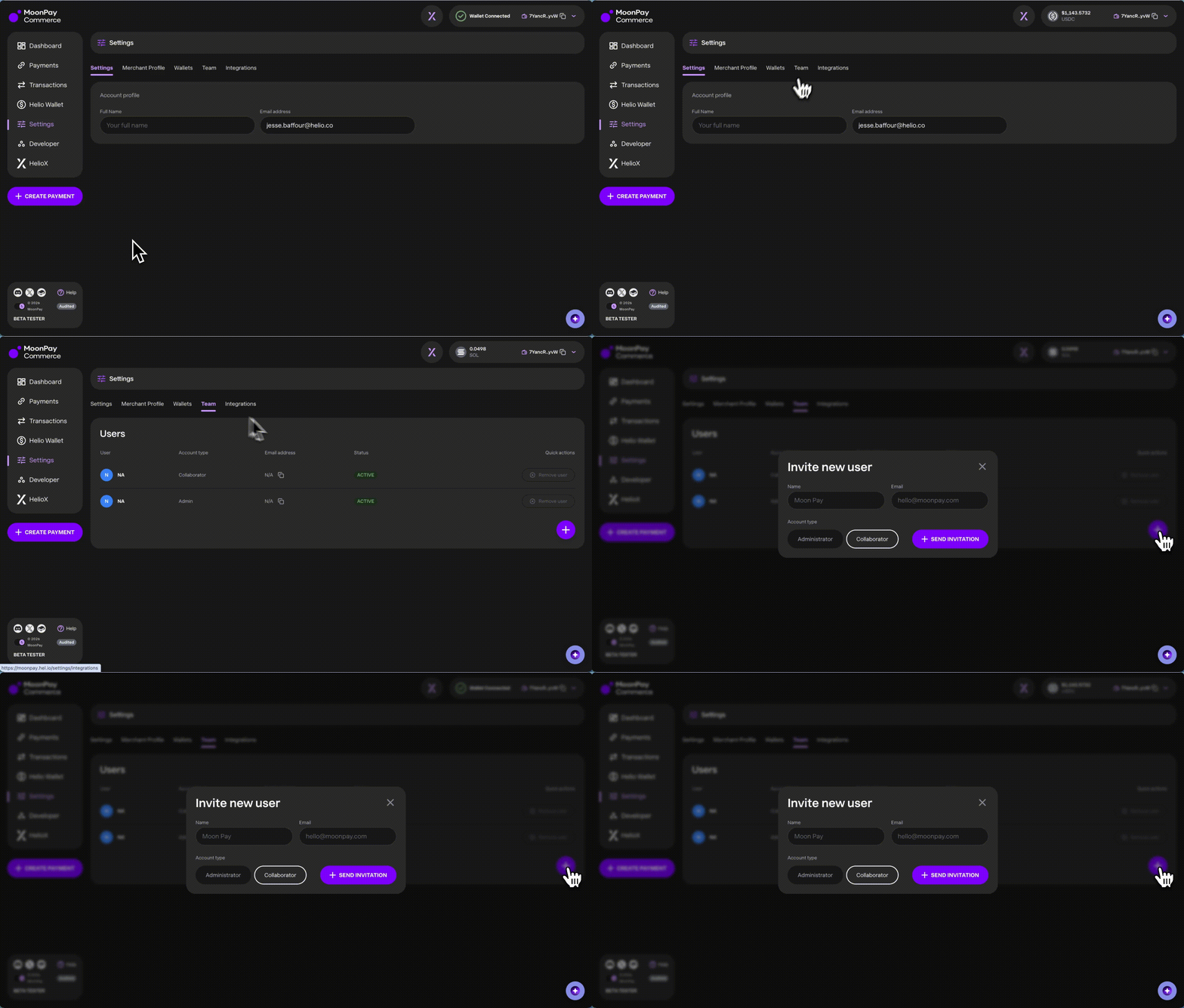
* Go to **Settings → Team**, click **Invite User** (or **Invite**), then enter the team member’s **name**, **email address**, and **role**. You can assign **Administrator**, **Collaborator**, or **Dev**. The invitation email reflects the role (for example that they were invited as a dev).
* **On the Team page:** Admins see **Invite User** and row actions (such as **⋮** to remove or cancel where applicable). Users on the team as **Dev** see the list read-only, with no invite or destructive actions in the table.
 * **Join the Team:**
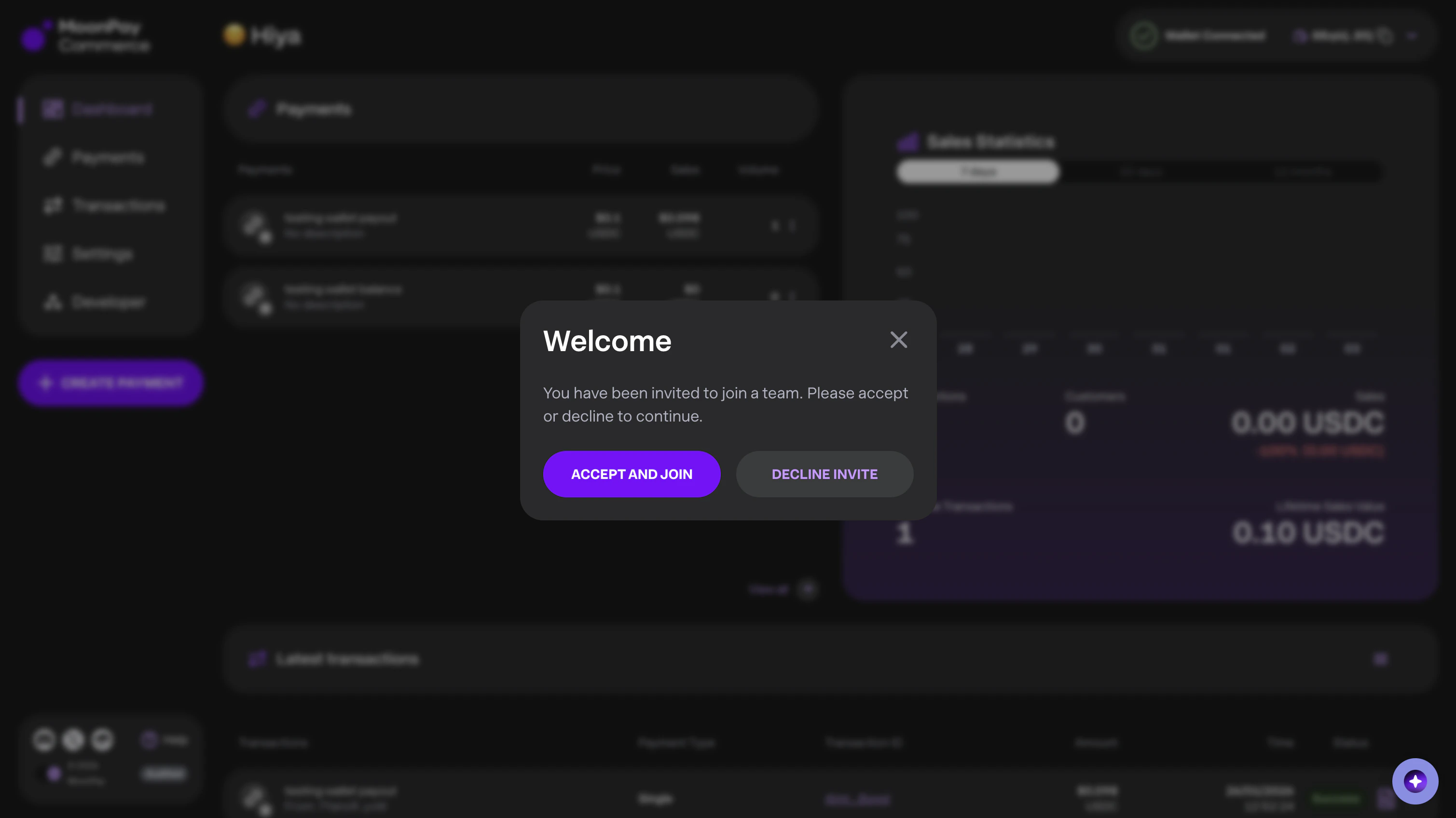
* The user can log in or refresh their dashboard to accept the invitation. Accepting a **Dev** invite grants the Dev permissions described above.
* **Join the Team:**
* The user can log in or refresh their dashboard to accept the invitation. Accepting a **Dev** invite grants the Dev permissions described above.
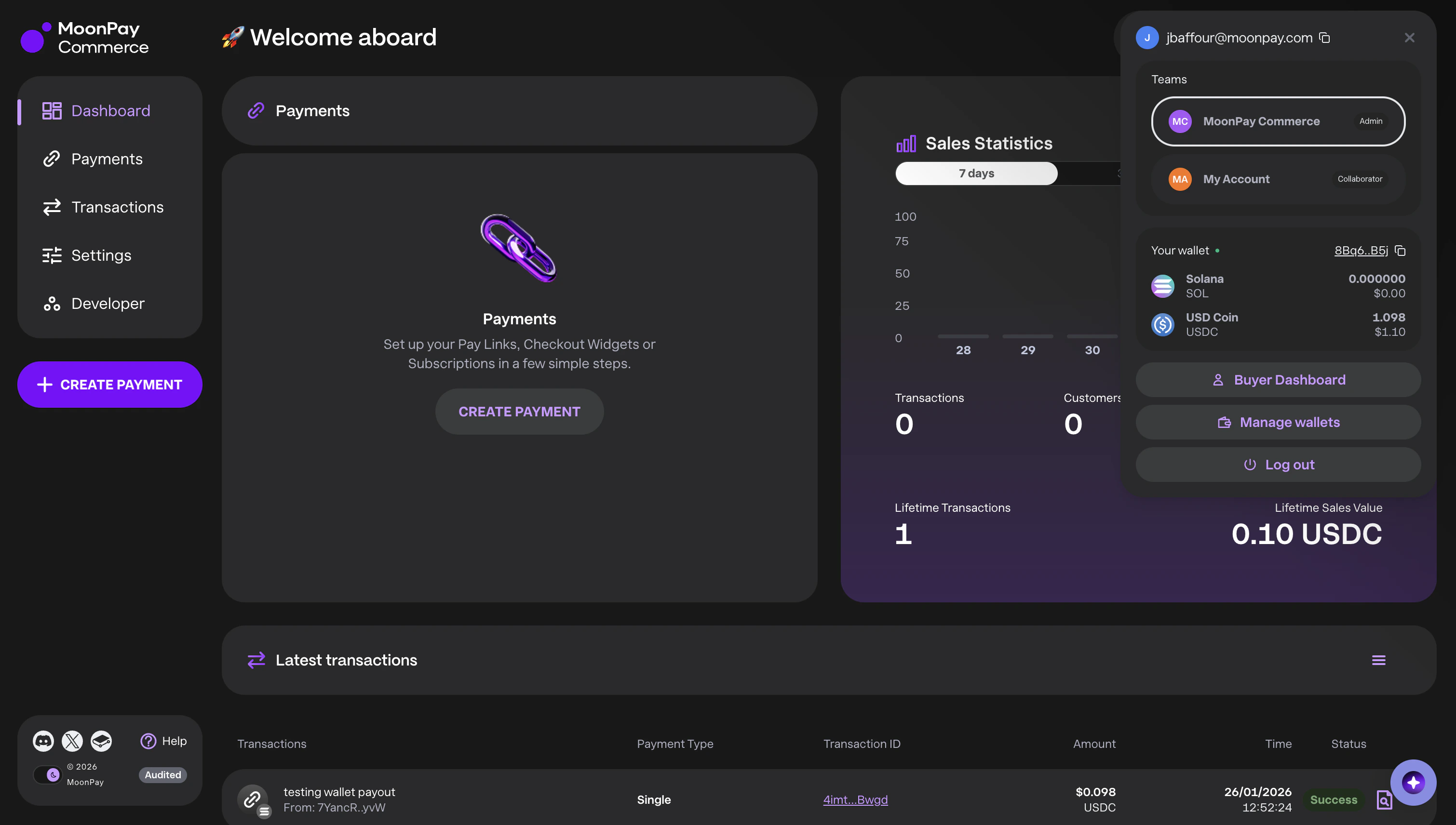
 * They can switch between the team account and their personal account from the **Teams** list in the wallet menu in the top bar: each row shows the role and which team is **Current**.